User Guide
Everything PDFWise can do, and how to use it — scan, organize, sign, convert, and protect your documents, all processed on your own device.
Quick start
Three steps from a paper document (or an existing file) to a finished PDF.
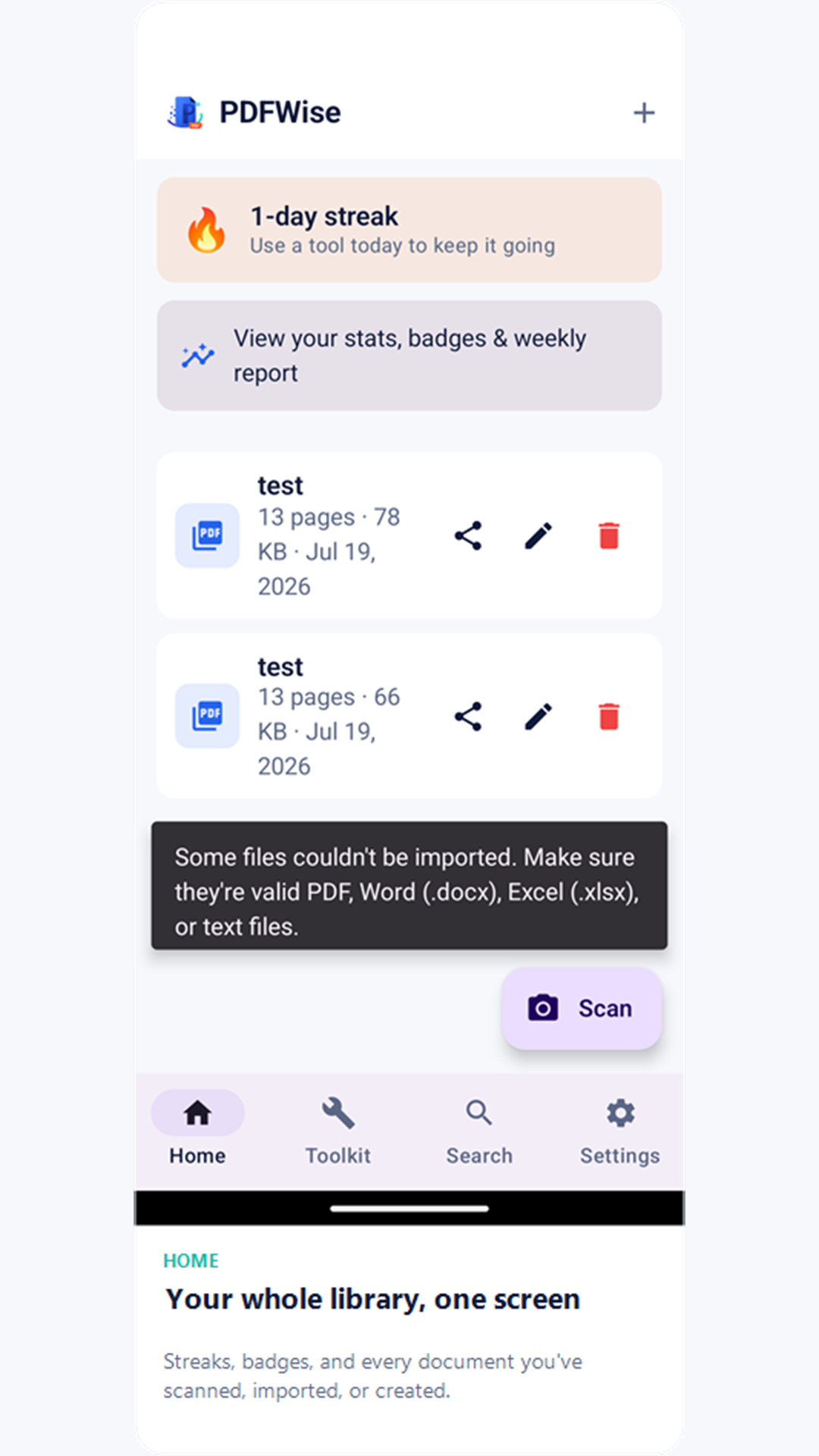
- Add a document. Tap the Scan button on Home to capture a paper document with your camera, or the + button to import a PDF, Word, Excel, text, or image file — non-PDF files convert to PDF automatically. You can also share a file to PDFWise from any other app, or choose "Open with PDFWise" on a file already on your device.
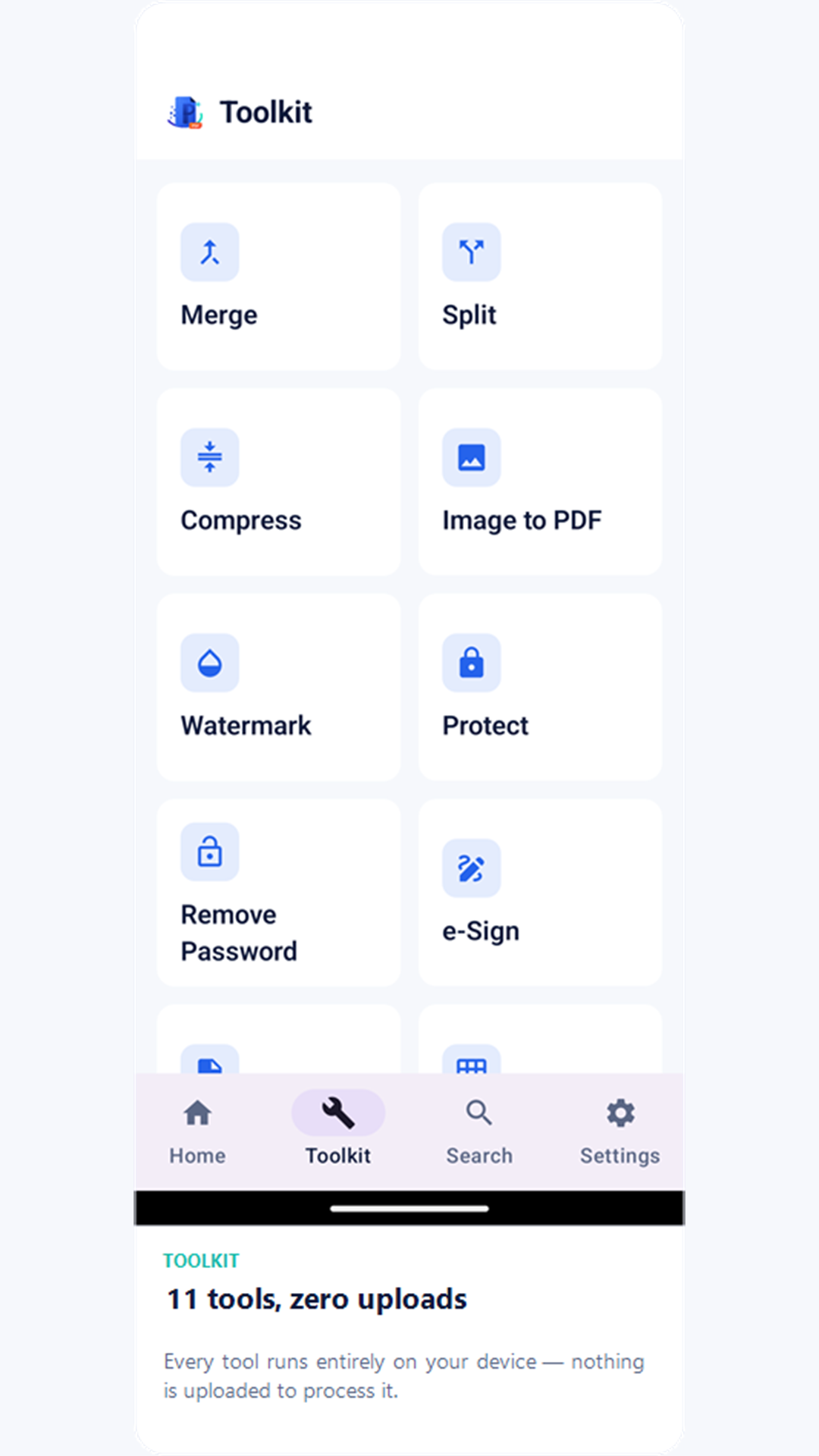
- Open the Toolkit and pick a tool — merge, split, compress, watermark, protect, e-sign, convert, or edit. Every tool works on documents already in your PDFWise library.
- Land back on Home with the result highlighted. Finishing a tool returns you to your library with the new or edited file highlighted, ready to open, share, or save straight to your Downloads folder.
The Toolkit
Every tool runs entirely on your device — nothing is uploaded to process it.
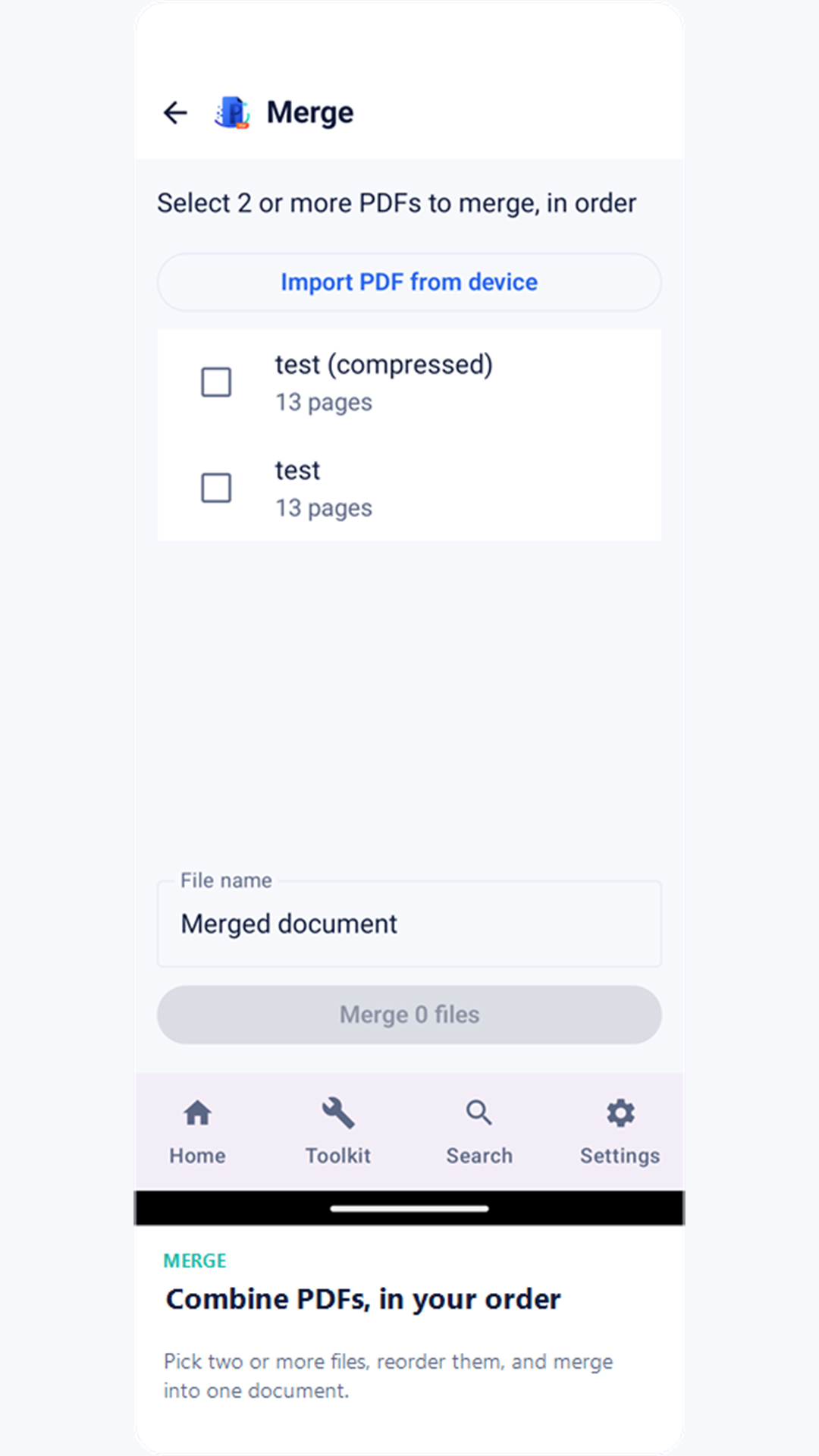
Merge
Combine two or more PDFs into one file, in the order you choose.
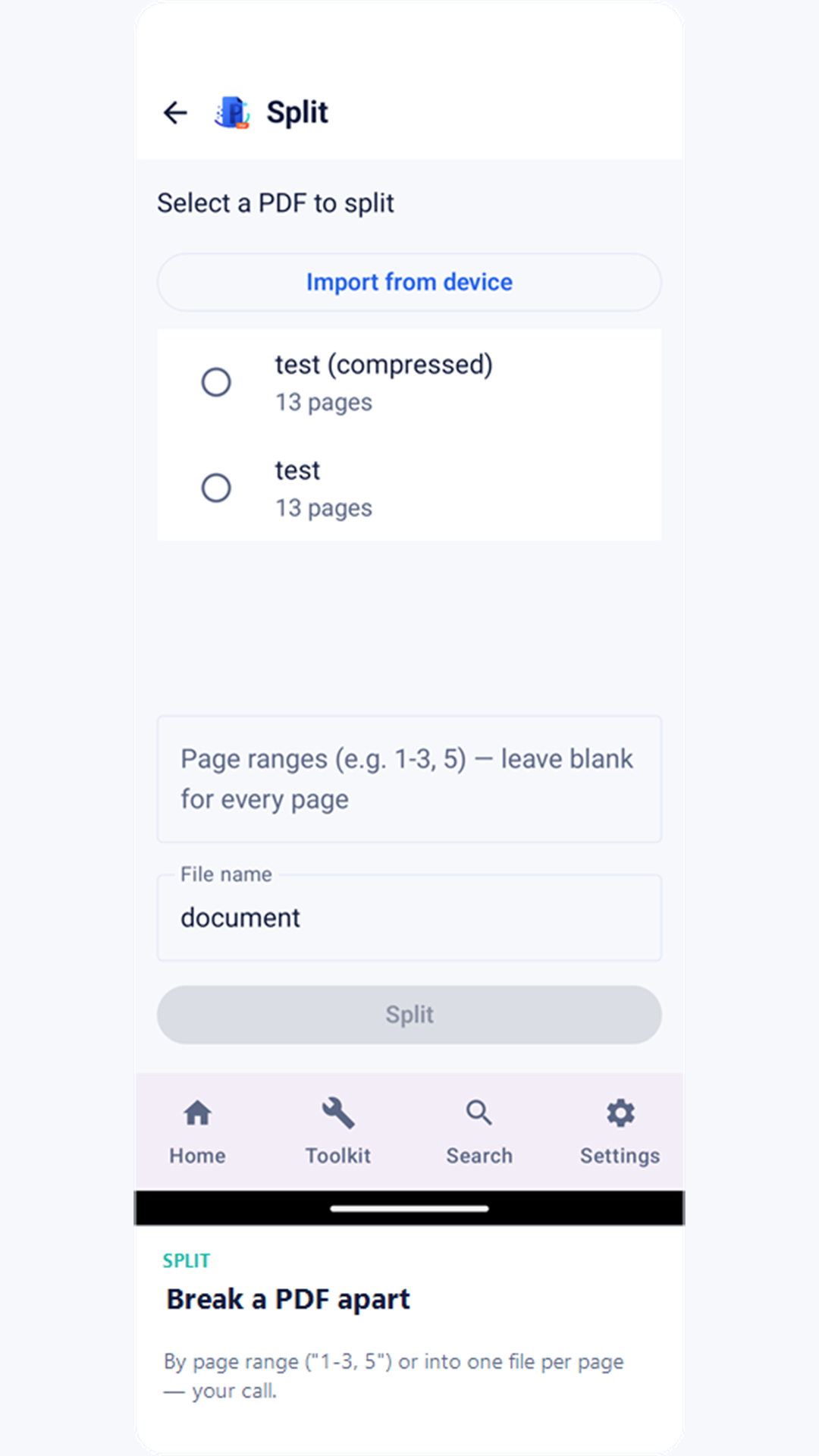
Split
Break a PDF apart by page ranges (e.g. "1-3, 5") or into one file per page.
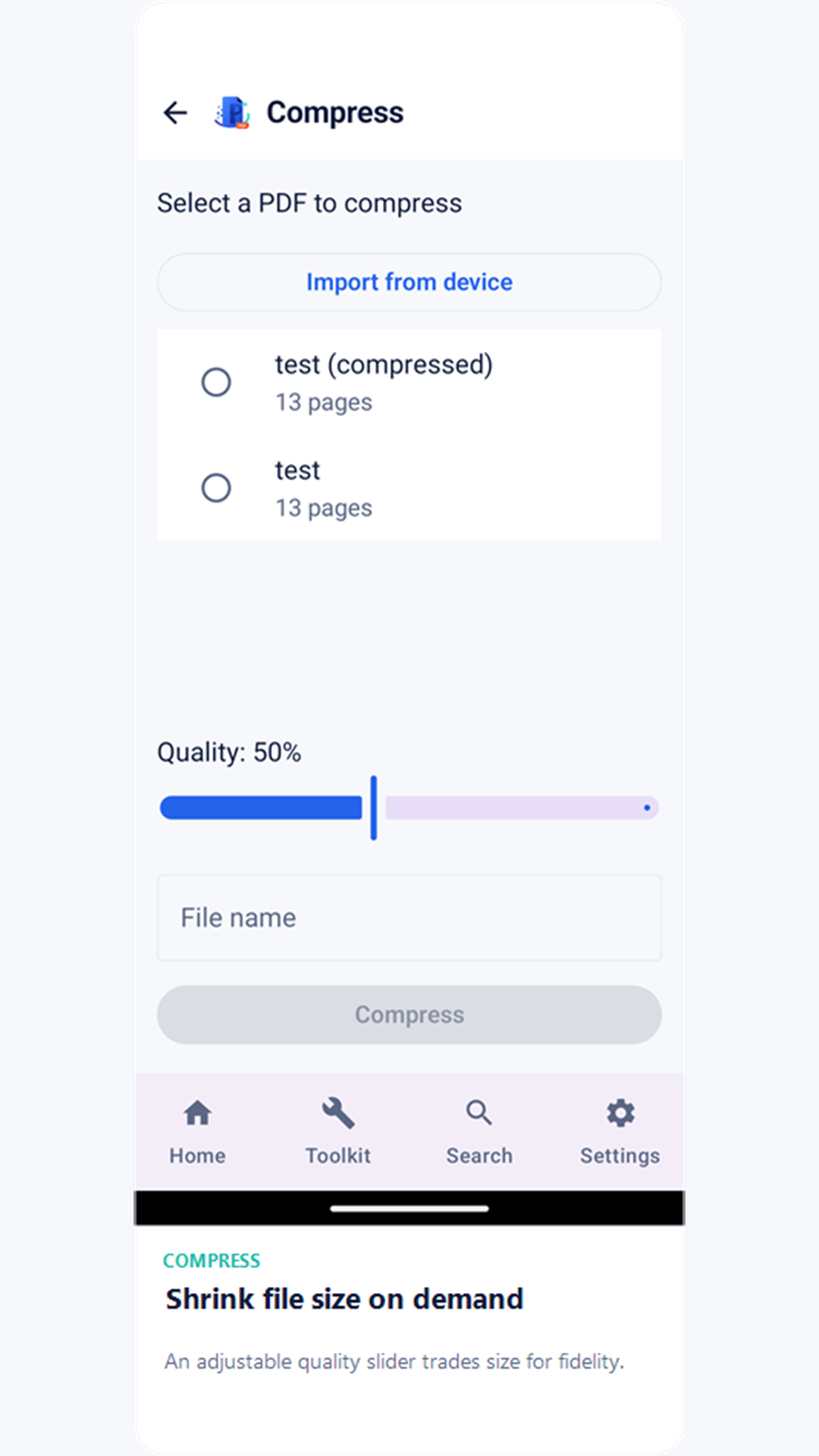
Compress
Shrink file size with an adjustable quality slider that re-encodes embedded images.
Image to PDF
Turn one or more photos into a single PDF, one page per image.
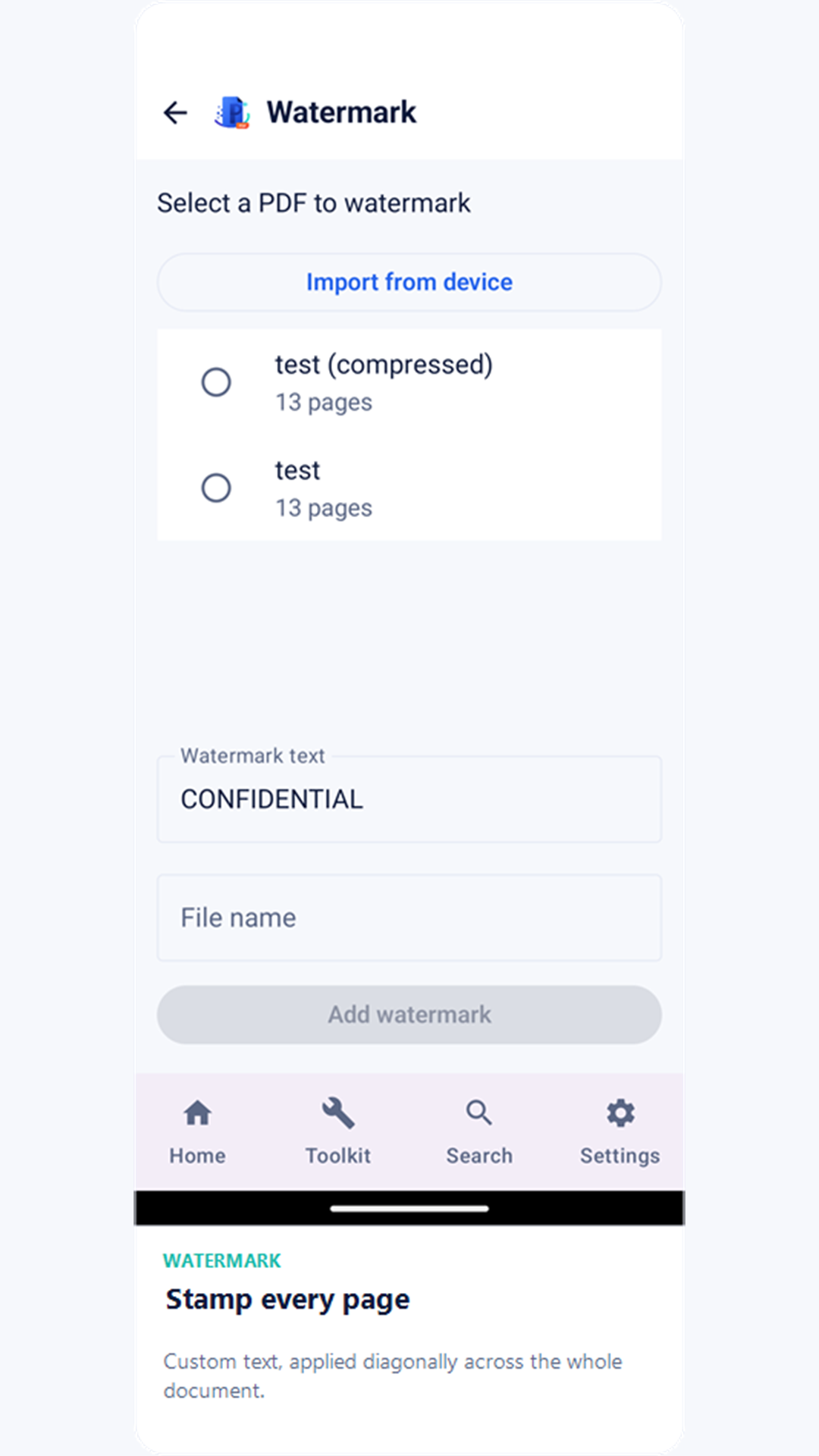
Watermark
Stamp a diagonal text watermark across every page.
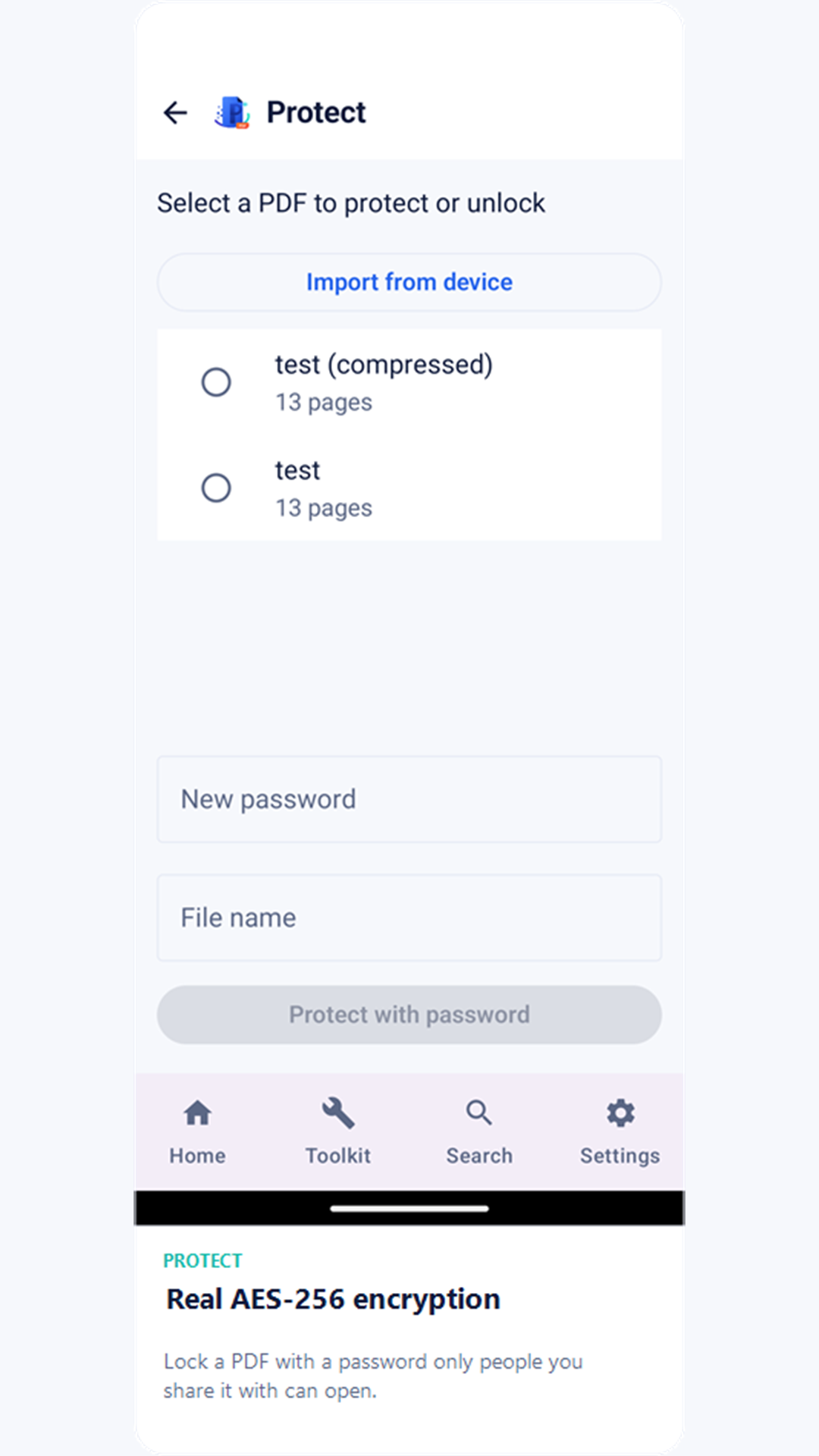
Protect
Lock a PDF with a real AES-256 password so only people you share it with can open it.
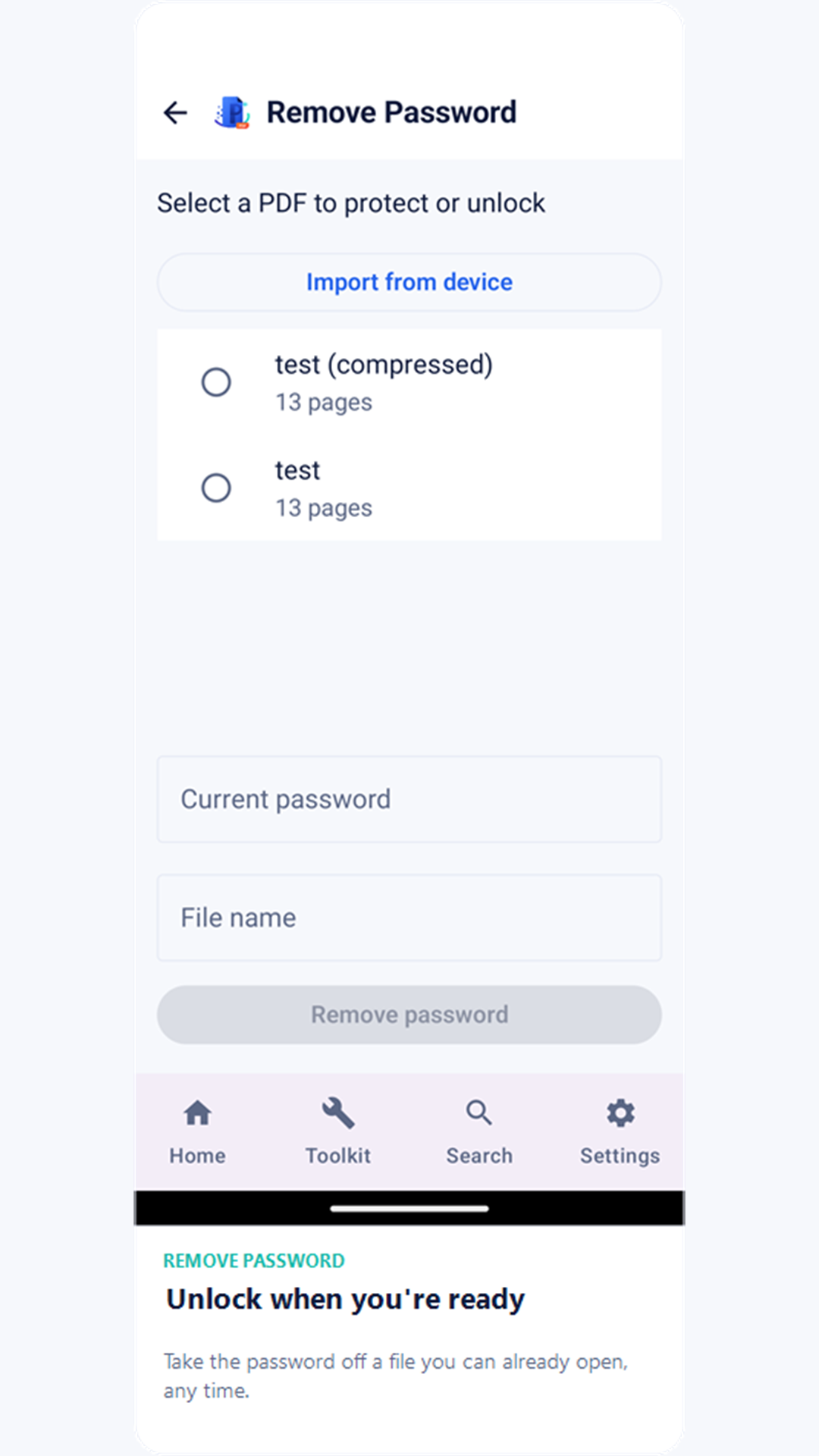
Remove Password
Take the password off a PDF you can already unlock, once you no longer need it protected.
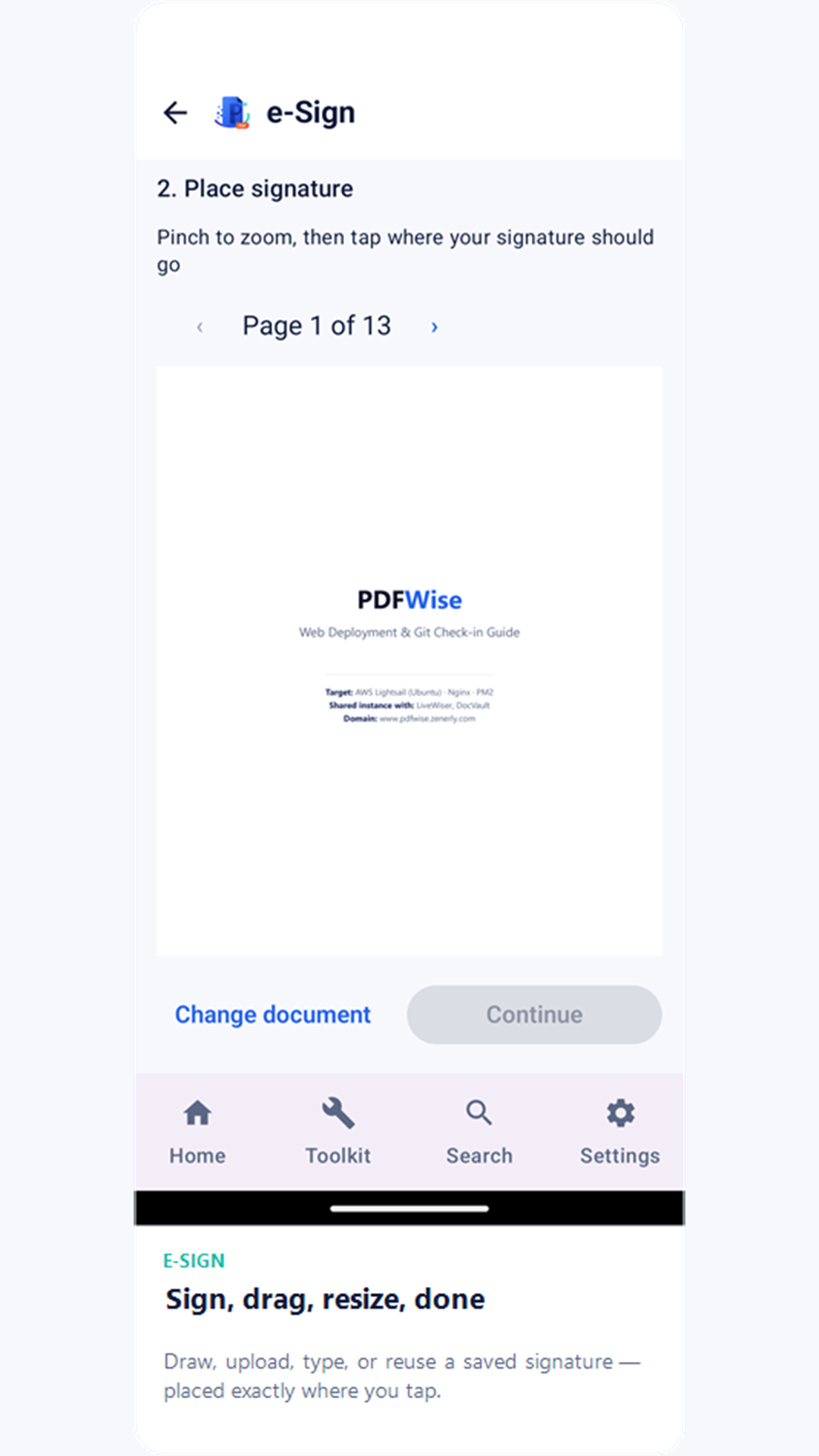
e-Sign
Draw, upload, type, or reuse a saved signature — drag to reposition and resize it before applying, with a quick Undo right after signing.
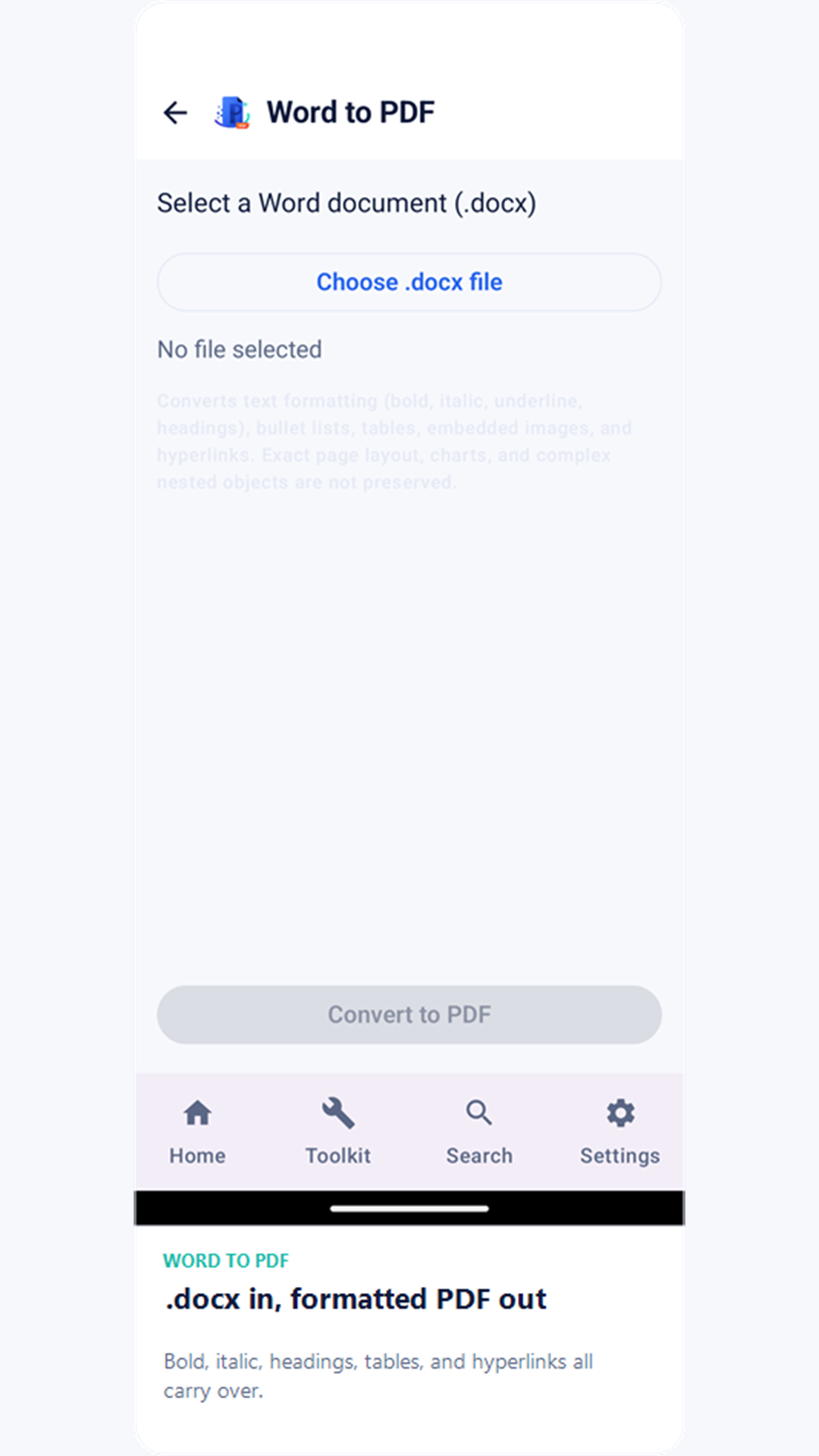
Word to PDF
Convert a .docx file's text and basic formatting (bold, italic, headings) to PDF, on-device.
Excel to PDF
Convert an .xlsx workbook's cell values into a paginated PDF grid, one section per sheet.
Edit PDF
Fill in a PDF's real form fields when it has them, or freehand draw and add typed text anywhere on the page when it doesn't.
A note on conversions: Word-to-PDF and Excel-to-PDF are built to work fully offline, without a third-party conversion service. They convert text, basic formatting, and cell values accurately, but complex layouts, tables, embedded images, charts, and cell formatting from the original file aren't reproduced.
Scan & Search
Scan
Capture paper documents with your camera. Edges are detected and cropped automatically, and you can capture multiple pages into a single PDF before saving.
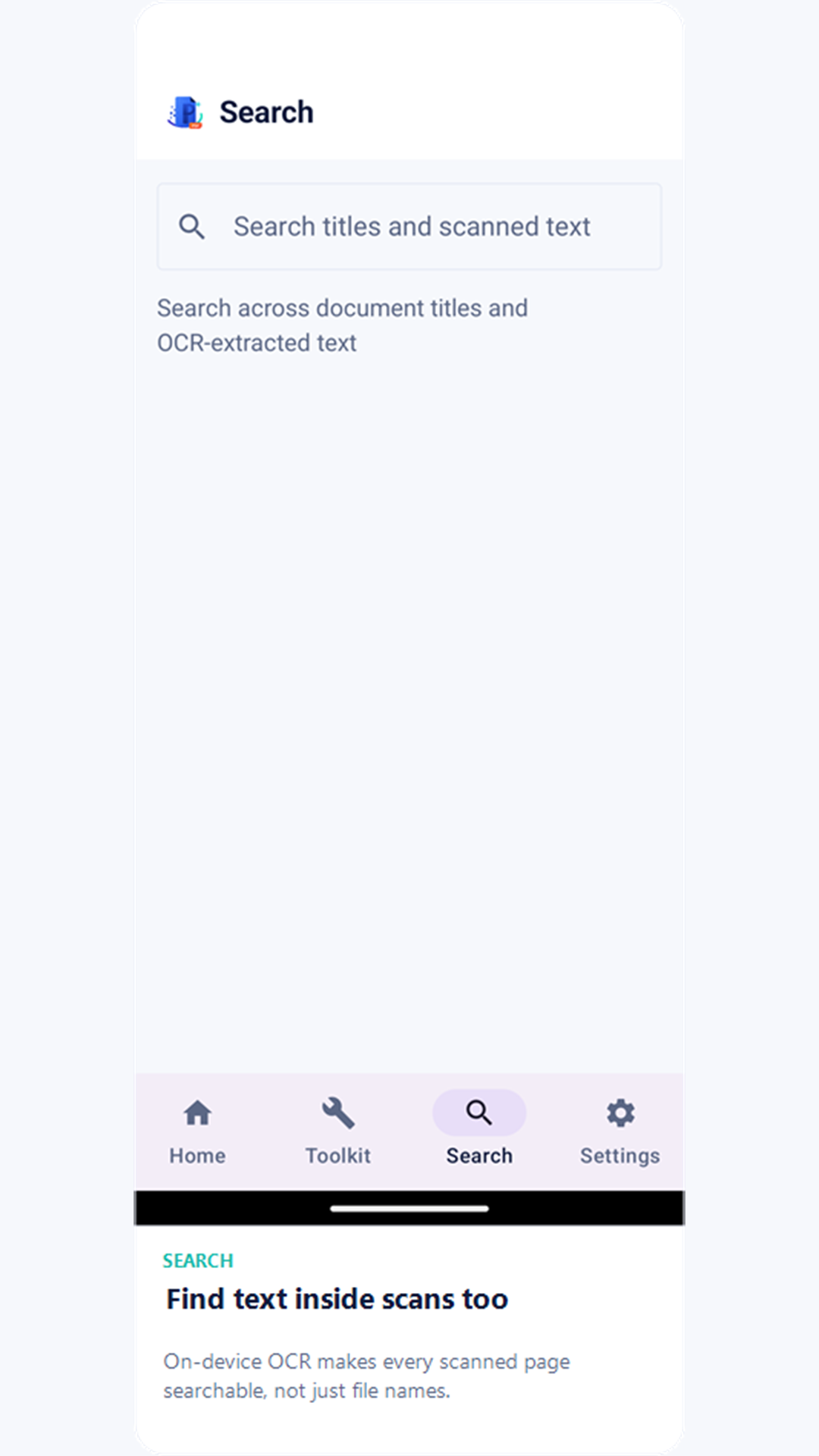
Search
Every scan runs through on-device text recognition (OCR) in the background, so you can search across both document titles and the text inside your scans.
Viewer & sharing
Tap any document in your library to open it.
- Share — send the PDF through any app on your device via the system share sheet.
- Save to Downloads — copy the file into your device's public Downloads folder.
- Unlock — if a document is password-protected, the viewer prompts for the password before rendering the pages.
On Home, each document's icons let you Share, Rename, or Delete it — or press and hold any document to select several at once for a bulk delete.
Backup & Restore
Connect your own Google Drive to keep a copy of your library off-device.
- Files are backed up to a private "PDFWise Backups" folder that only PDFWise can see in your Drive — the app never sees the rest of your Drive.
- Turn on Auto backup daily to back up new or changed PDFs automatically.
- Wi-Fi only keeps auto-backup from using mobile data.
- Restore pulls your backed-up documents back down onto a new or reset device.
Personalize
Found under Settings.
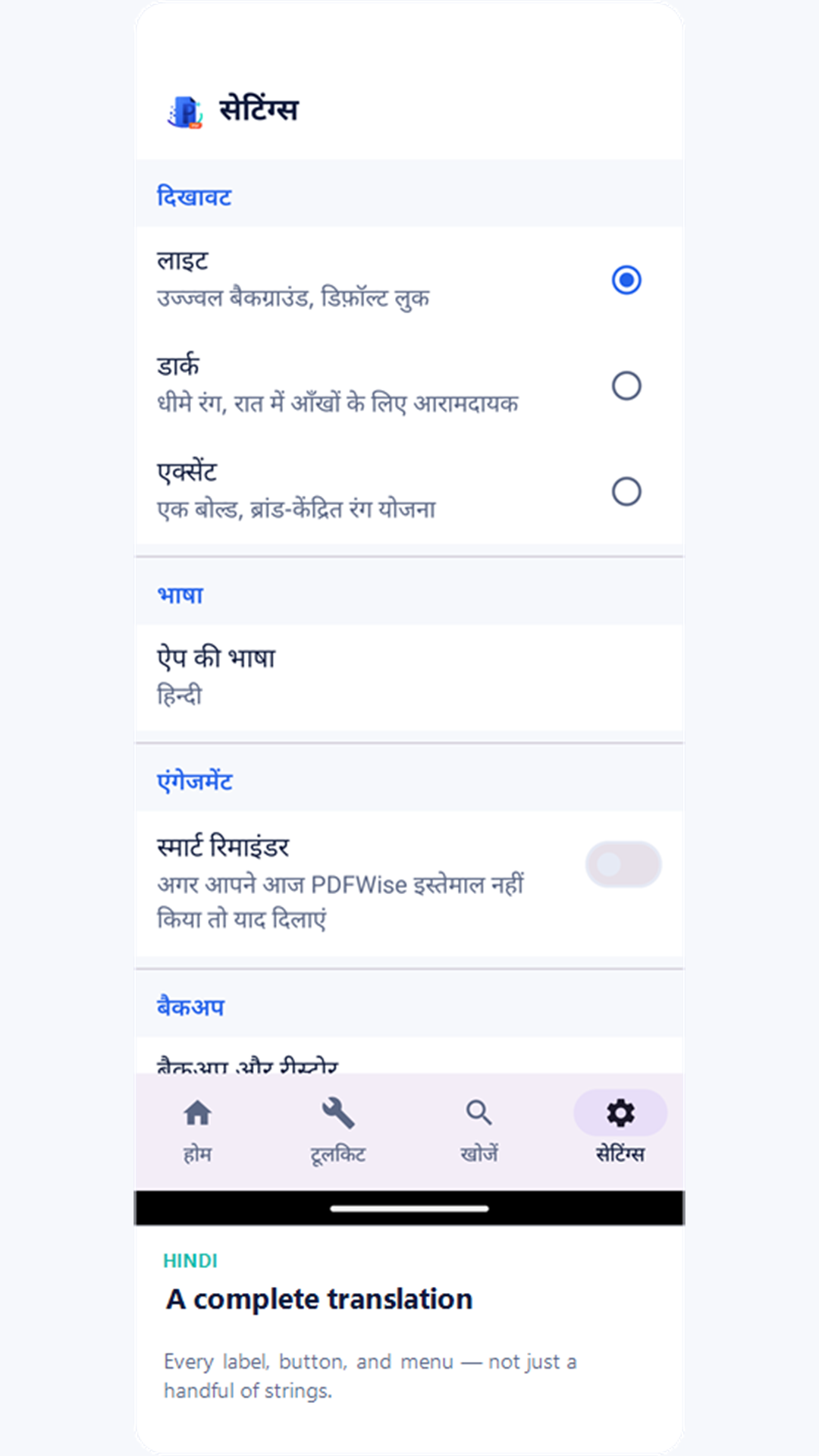
- Appearance — choose Light (default), Dark, or Accent, a bolder brand-forward color scheme.
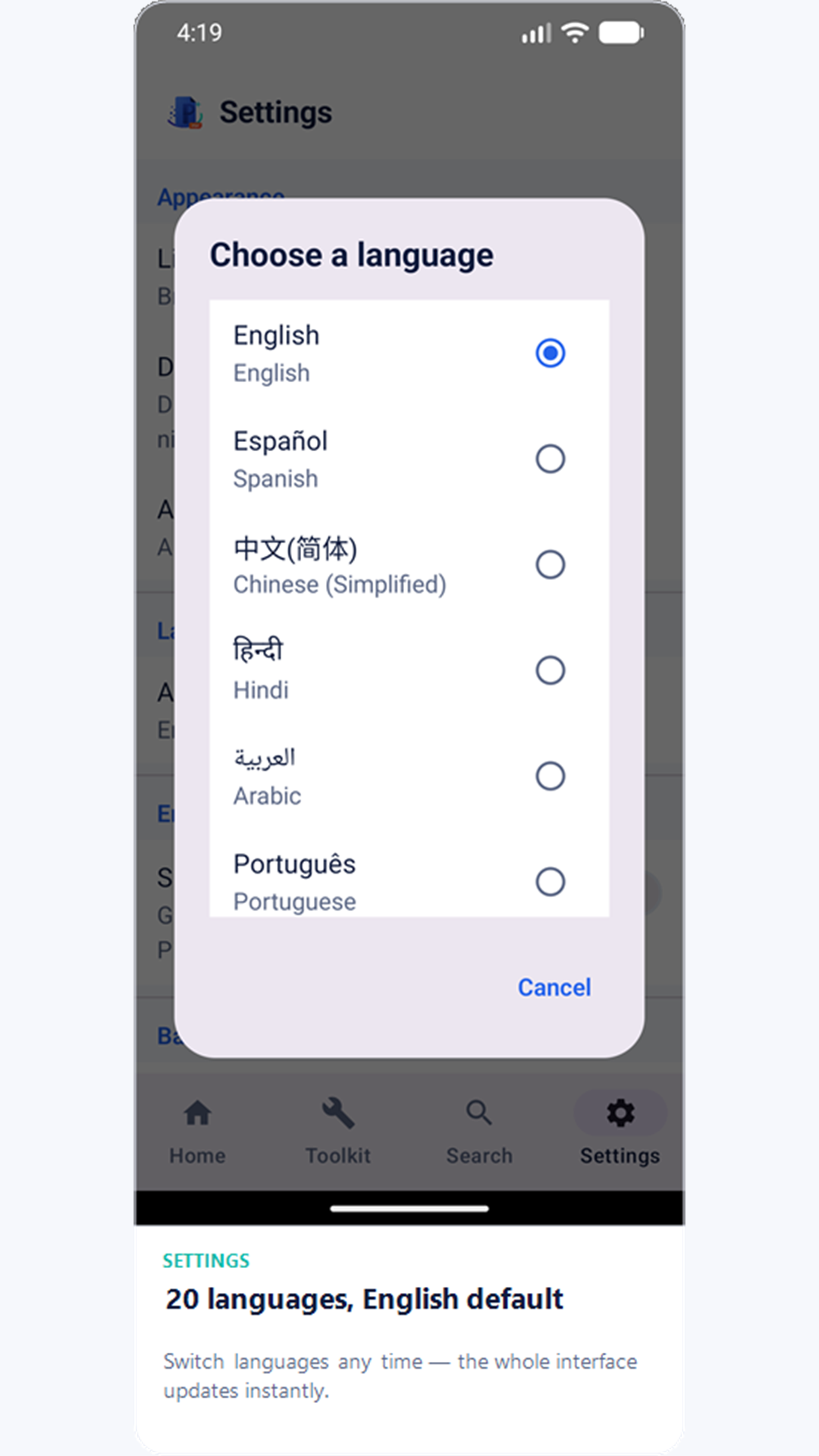
- Language — PDFWise's interface is available in 20 languages, with English as the default; change it any time from Settings.
- Smart reminders — an optional daily nudge if you haven't opened PDFWise yet that day.
- Biometric app lock — require your fingerprint or face to open PDFWise, on devices that support it.
Streaks, badges & unlocks
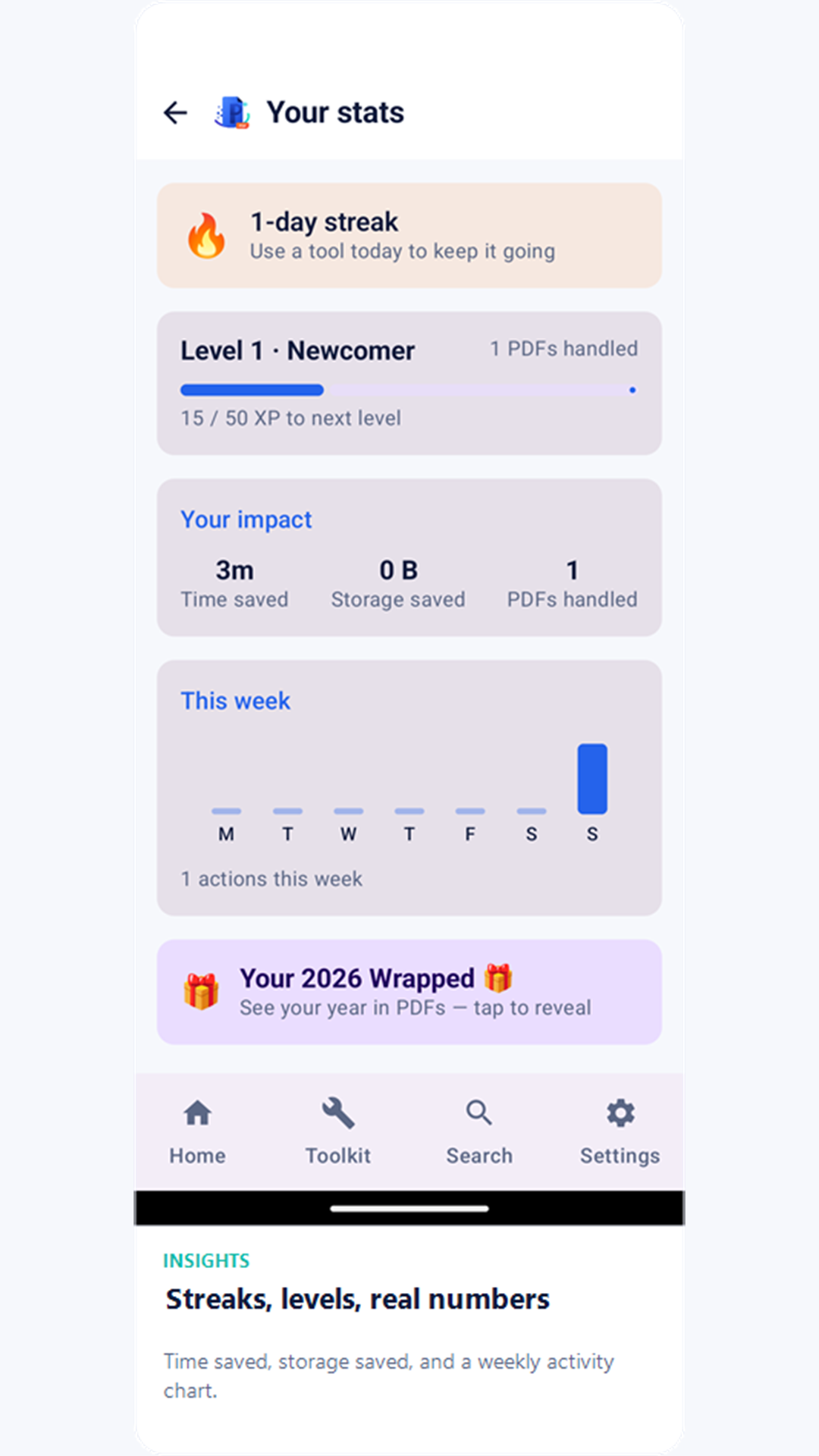
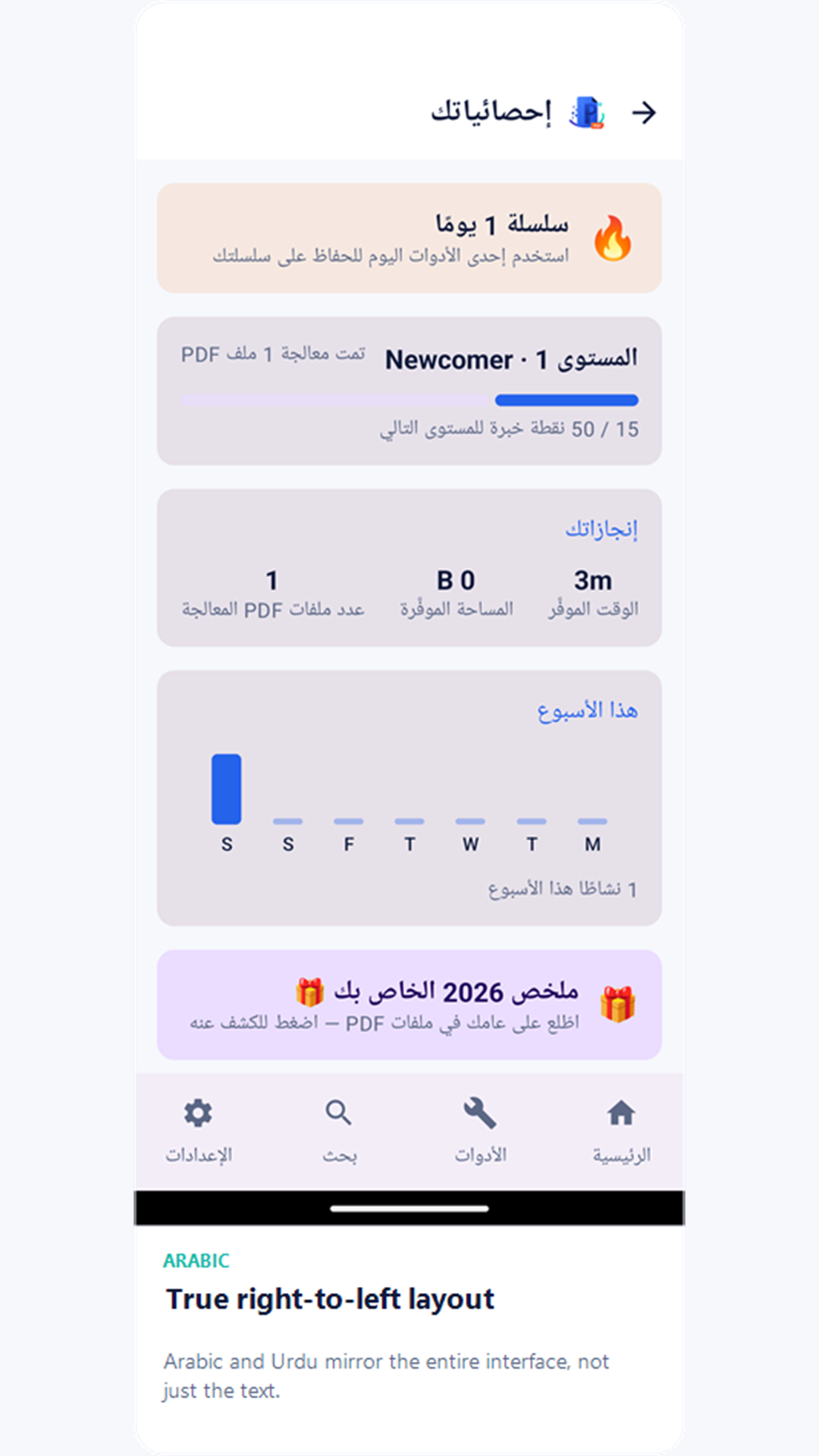
The Insights tab tracks your real usage — nothing here is cosmetic.
- Daily streak — tracked from your device clock; use any tool once a day to keep it alive.
- Badges — a 15-badge catalog for first-time use, usage milestones, streaks, and storage saved.
- Levels — an XP system with named levels based on how much you've used the app.
- Weekly report — a Monday-to-Sunday chart of your activity, with a week-over-week comparison.
- Wrapped & badge cards — once you've used the app long enough, a yearly Wrapped recap and shareable badge cards become available from Insights too.
Every tool on the Toolkit grid is available from the start — no unlocking required.
Privacy, built in
- PDFWise is offline-first: scanning, merging, splitting, compressing, watermarking, password-protecting, e-signing, converting, and editing all happen on your device — your files aren't uploaded anywhere to be processed.
- No account or sign-in is required to use the app.
- Google Drive backup is entirely opt-in, and scoped so PDFWise can only see the one backup folder it creates — never the rest of your Drive.
- Read the full Privacy Policy for details.